


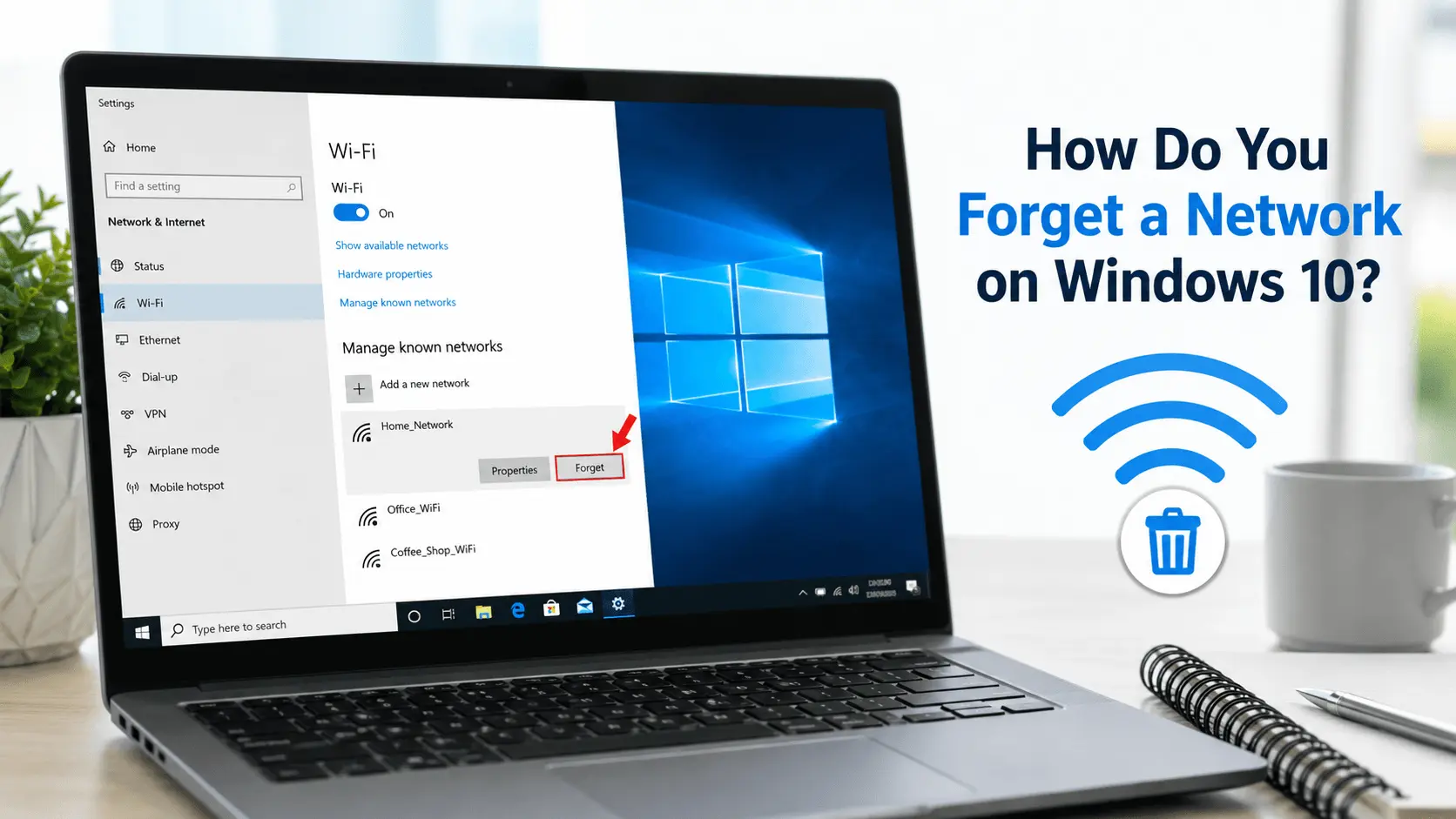
How do you forget a network on Windows 10? Open Settings, go to Network & Internet > Wi-Fi > Manage known networks, select the Wi-Fi network and click Forget.
Windows will delete the saved connection profile, including the stored Wi-Fi password and automatic connection settings. You can reconnect later by selecting the network and entering its current password.
This guide explains every available method, including Windows Settings, the taskbar and Command Prompt. It also covers network troubleshooting steps if forgetting and reconnecting to the network does not solve the problem.
Table of Contents
How Do You Forget a Network on Windows 10? Quick Steps
The fastest way to remove a saved Wi-Fi network is through Windows Settings:
- Click the Start button.
- Open Settings.
- Select Network & Internet.
- Click Wi-Fi in the left-hand menu.
- Select Manage known networks.
- Click the network you want to remove.
- Select Forget.
The saved network profile will be removed immediately. Windows usually does not display an additional confirmation message.

To reconnect, click the Wi-Fi icon in the taskbar, select the network, click Connect and enter the current password.
What Happens When You Forget a Wi-Fi Network?
When Windows 10 connects to Wi-Fi, it normally saves a network profile containing:
- The Wi-Fi network name, also known as the SSID
- The saved network password
- Security and encryption details
- Automatic connection preferences
- Network-specific configuration settings
Forgetting the network removes those saved details from your computer.
It does not:
- Turn off the router
- Change the Wi-Fi password
- Remove the network from other devices
- Prevent the network from appearing nearby
- Delete any files from your computer
The Wi-Fi network may still appear in the available networks list because the router is continuing to broadcast its signal. Windows simply no longer has the saved information needed to connect automatically.
How Do You Forget a Network on Windows 10 Using Settings?
The Settings application is the recommended method because it displays all saved Wi-Fi networks, including networks that are not currently within range.
Step 1: Open Network Settings
Click the Start button and select the Settings gear icon.
You can also press Windows key + I to open Settings directly.
Next, select:
Network & Internet > Wi-Fi
Step 2: Open Manage Known Networks
On the Wi-Fi settings page, click Manage known networks.
Windows will display every wireless network profile saved on the computer. This can include:
- Your home Wi-Fi
- Workplace networks
- Mobile hotspots
- Hotel Wi-Fi
- Café or airport networks
- Networks that are no longer available
Step 3: Select the Network
Find the Wi-Fi network you want to remove and click its name.
Windows should display two options:
- Properties
- Forget
Click Forget.
If you were wondering how do you forget a network on Windows 10 without changing the router, this is the correct option. It removes only the profile saved on your computer.
Step 4: Reconnect to Wi-Fi
To reconnect:
- Click the Wi-Fi icon near the clock.
- Select the network name.
- Click Connect.
- Enter the current Wi-Fi password.
- Click Next.
Wi-Fi passwords are case-sensitive. Make sure uppercase letters, lowercase letters, numbers and symbols are entered correctly.
How to Forget a Network from the Windows 10 Taskbar
You may also be able to forget a visible Wi-Fi network directly from the taskbar.

- Click the Wi-Fi icon in the bottom-right corner.
- Find the network in the list.
- Right-click the network name.
- Select Forget.
The available options can vary between Windows 10 versions. The Forget option may also be unavailable when the network is not currently within range.
When the option does not appear, use Settings > Network & Internet > Wi-Fi > Manage known networks instead.
How Do You Forget a Network on Windows 10 with Command Prompt?

Command Prompt is useful when the network does not appear correctly in Settings or when you need to remove a saved Wi-Fi profile by its exact name.
View Saved Wi-Fi Profiles
- Open the Start menu.
- Search for Command Prompt.
- Select Run as administrator.
- Enter:
netsh wlan show profiles
Windows will display all Wi-Fi profiles saved on the computer.
Delete a Specific Wi-Fi Profile
Enter the following command, replacing NetworkName with the correct Wi-Fi name:
netsh wlan delete profile name="NetworkName"
For example:
netsh wlan delete profile name="HomeWiFi"
Windows should confirm that the profile has been deleted.
Microsoft provides additional information about these commands in its official netsh wlan documentation.
How Do You Forget a Network on Windows 10 If It Is Not Visible?
A network does not need to be nearby for you to remove its saved profile.
Open:
Settings > Network & Internet > Wi-Fi > Manage known networks
Search the saved network list and select Forget.
If it is still missing, open Command Prompt as an administrator and run:
netsh wlan show profiles
After identifying the correct profile name, remove it with:
netsh wlan delete profile name="NetworkName"
This method can delete old networks even when they no longer appear in the standard Wi-Fi connections list.
Why Should You Forget a Saved Network?
Forgetting and reconnecting to Wi-Fi can help when:
- The Wi-Fi password has changed
- Windows keeps using an old password
- The computer connects to the wrong network
- You see “Can’t connect to this network”
- The saved profile contains incorrect security settings
- You no longer trust a public Wi-Fi network
- The network repeatedly disconnects
- Windows connects but has no internet access
Forgetting the network is usually safer than performing a complete network reset because it affects only one Wi-Fi profile.
What to Do If Forgetting the Network Does Not Work
If you followed the steps for how do you forget a network on Windows 10 but the connection still fails, try the following troubleshooting methods.
Restart the Computer and Router
Restarting both devices can clear temporary network errors.
- Restart or shut down the computer.
- Disconnect the router from power.
- Wait approximately 30 seconds.
- Reconnect the router.
- Wait for its connection lights to stabilise.
- Start the computer and reconnect.
Do not press the router’s physical reset button. That button may restore factory settings and erase the router configuration.
Check the Wi-Fi Password
Make sure you are using the latest password.
Check that:
- You selected the correct Wi-Fi name
- Caps Lock is not enabled accidentally
- Capital letters are entered correctly
- Symbols and numbers match
- The keyboard layout is correct
Turn Wi-Fi Off and Back On
Open:
Settings > Network & Internet > Wi-Fi
Turn Wi-Fi off, wait a few seconds and turn it back on.
Also confirm that Airplane mode is disabled.
Run the Network Troubleshooter
Open:
Settings > Update & Security > Troubleshoot > Additional troubleshooters
Run either:
- Internet Connections
- Network Adapter
Follow the instructions displayed by Windows.
For further help, visit the official Microsoft Windows support centre.
How to Reset Network Settings in Windows 10
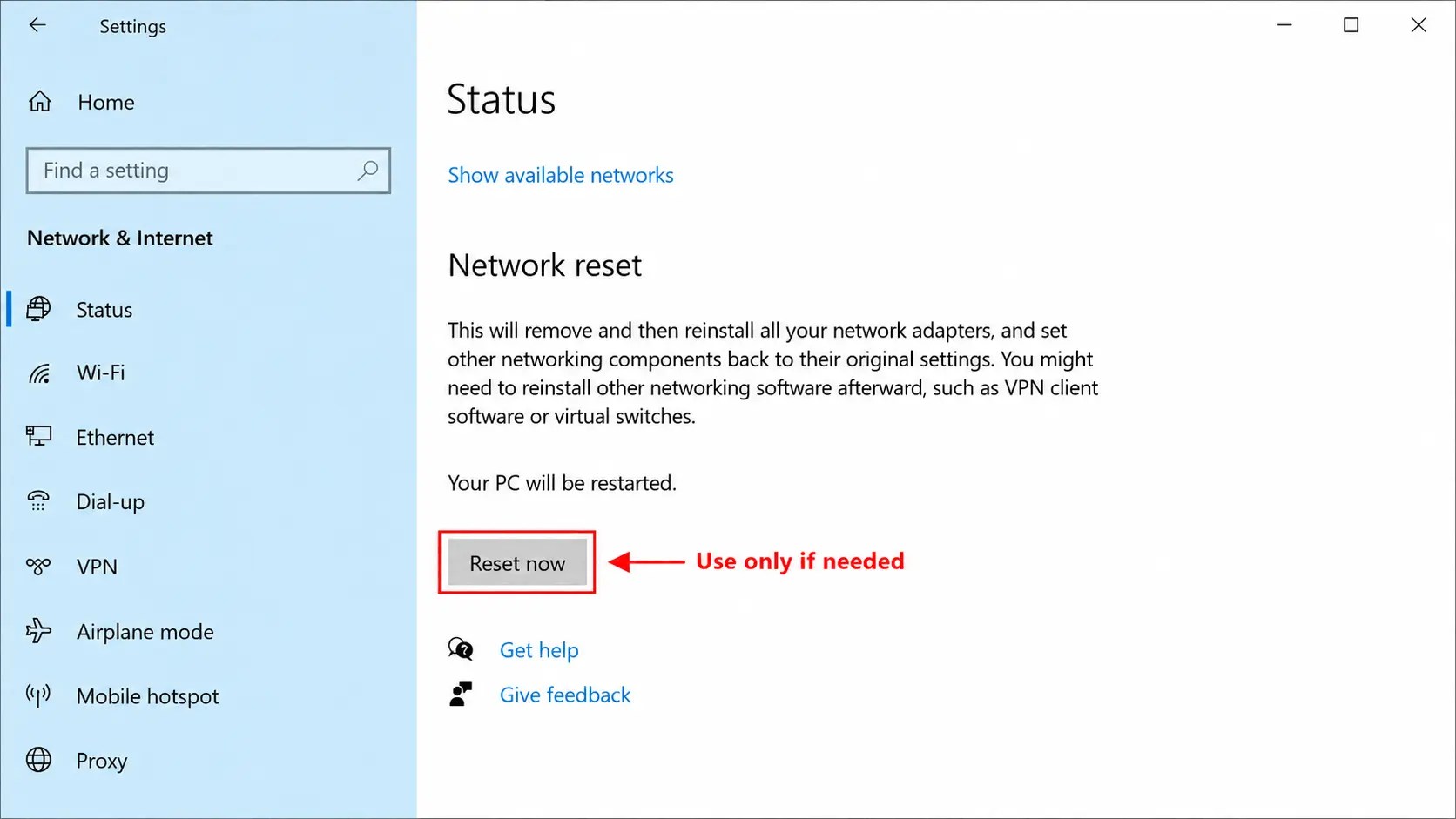
A network reset is more extensive than forgetting one Wi-Fi network. Use it only when simpler troubleshooting steps have failed.
- Open Settings.
- Select Network & Internet.
- Open Status.
- Scroll down to Network reset.
- Click Reset now.
- Confirm the reset.
Save your work first because Windows may restart the computer.
A network reset can remove or reset:
- Saved Wi-Fi profiles
- Network adapters
- VPN adapters
- Custom DNS settings
- Custom IP settings
- Virtual network adapters
- Public and Private network preferences
After the reset, you may need to reinstall VPN software, reconnect to Wi-Fi and re-enter network passwords.
How to Reinstall the Windows 10 Network Adapter
A damaged network driver can cause persistent connection problems.
- Right-click the Start button.
- Select Device Manager.
- Expand Network adapters.
- Find the wireless adapter.
- Right-click it.
- Select Uninstall device.
- Confirm the removal.
- Restart the computer.
Windows should detect and reinstall the network adapter automatically.
Avoid selecting the option to delete the driver software unless you already have the correct replacement driver.
Common Windows 10 Wi-Fi Problems
“Can’t Connect to This Network”
This is often caused by an old password or damaged network profile.
Forget the network and reconnect using the current password.
Connected but No Internet
Possible causes include:
- Router problems
- Internet service outages
- Incorrect DNS settings
- Proxy configuration errors
- VPN software problems
Restart the router, disable unnecessary proxy or VPN settings and test another device.
Wi-Fi Network Does Not Appear
Check that:
- Wi-Fi is enabled
- Airplane mode is disabled
- The computer is close enough to the router
- The router is broadcasting
- The network adapter appears in Device Manager
Windows Connects to the Wrong Network
Windows may be connecting automatically to another saved profile.
Forget the unwanted network or disable the Connect automatically option.
For other Windows-related help, see our Windows 10 Phone Activation Guide or visit the A2Keys homepage.
Frequently Asked Questions
Does Forgetting a Network Delete the Wi-Fi Password?
Yes. It deletes the password saved on that particular Windows 10 computer.
It does not change the password stored in the router.
Can I Reconnect After Forgetting the Network?
Yes. Select the Wi-Fi network again and enter its current password.
Why Does the Wi-Fi Still Appear After I Forget It?
Forgetting removes the saved profile, not the router’s wireless signal.
The network will remain visible whenever the computer is within range.
Does Forgetting a Network Affect Other Devices?
No. Other computers, phones and tablets will remain connected.
Is Network Reset the Same as Forgetting a Network?
No. Forgetting removes one saved Wi-Fi profile. Network reset reinstalls network adapters and restores many networking settings to their defaults.
How Do You Forget a Network on Windows 10 Without the Password?
You do not need the password to forget a saved network.
Open Manage known networks, select the profile and click Forget. You will only need the password when you try to reconnect.
Conclusion
How do you forget a network on Windows 10? Go to Settings > Network & Internet > Wi-Fi > Manage known networks, select the saved network and click Forget.
You can also remove the profile from the taskbar or use the netsh wlan delete profile command.
Forgetting and reconnecting to a network can fix problems caused by outdated passwords, incorrect security settings and damaged Wi-Fi profiles. If the issue continues, restart the router, run the network troubleshooter or reset the network settings as a final step.