


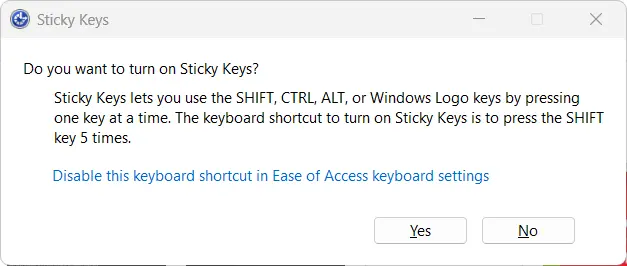
Tired of the pop-up every time you tap Shift five times? This guide shows you exactly how to disable Sticky Keys—and how to turn off Sticky Keys shortcuts—on Windows 10 and Windows 11. You’ll also learn how to re-enable it later if you need the accessibility feature again.

What Is Sticky Keys?
Sticky Keys is a Windows accessibility feature that lets you press modifier keys (Ctrl, Alt, Shift, Windows) one at a time instead of holding them together. It’s helpful for users who can’t press multiple keys simultaneously. If you don’t need it, you can quickly turn it off and stop the Shift pop-up.
How to Turn Off Sticky Keys (Quick Steps)
- Open Settings (press Windows + I).
- Go to Accessibility → Keyboard.
- Toggle Sticky Keys to Off.
- (Recommended) Click Sticky Keys to expand options and turn off the Shift-five-times shortcut.

Disable Sticky Keys in Windows 10
- Press Windows + S and search for Ease of Access keyboard settings.
- Under Use Sticky Keys, toggle off Press one key at a time for keyboard shortcuts.
- Click Apply if shown.
Disable Sticky Keys in Windows 11
- Press Windows + I to open Settings.
- Navigate to Accessibility → Keyboard.
- Toggle Sticky Keys to Off.
- Click the Sticky Keys entry for more options and uncheck sounds, notifications, and shortcut activation.

Disable the Shift Key Shortcut (Stop Pop-Ups)
To prevent Sticky Keys from activating when you hit Shift five times:
- Open Settings → Accessibility → Keyboard.
- Select Sticky Keys options.
- Turn off Keyboard shortcut for Sticky Keys (or uncheck Enable Sticky Keys when I press Shift five times).
How to Re-enable Sticky Keys (Optional)
Need it again for accessibility? Go back to Settings → Accessibility → Keyboard and toggle Sticky Keys to On. Re-enable the Shift shortcut if you want quick activation.
Troubleshooting Tips
- Sticky Keys won’t turn off: Restart your PC and try again. Ensure you’re toggling both the main switch and the shortcut option.
- Still seeing pop-ups: Open the detailed Sticky Keys options and disable sounds/notifications.
- System won’t save changes: Run
sfc /scannowin Command Prompt (Admin) to repair system files, then reboot.
For more help, see the official guidance on the Microsoft Support site.
FAQ
What is the fastest way to turn off Sticky Keys?
Go to Settings → Accessibility → Keyboard and toggle Sticky Keys off. Then disable the Shift-five-times shortcut to prevent pop-ups.
How do I permanently disable the Sticky Keys pop-up?
Turn off Sticky Keys and its shortcut in the Sticky Keys options. Also uncheck sounds and notifications to avoid prompts.
Does turning off Sticky Keys affect other accessibility settings?
No. It only affects Sticky Keys. Other accessibility features like Filter Keys and Toggle Keys are unaffected.
Related A2Keys Resources
Sticky Keys settings can differ slightly between Windows versions, so check the guide that matches the device and edition you use.